Introduction
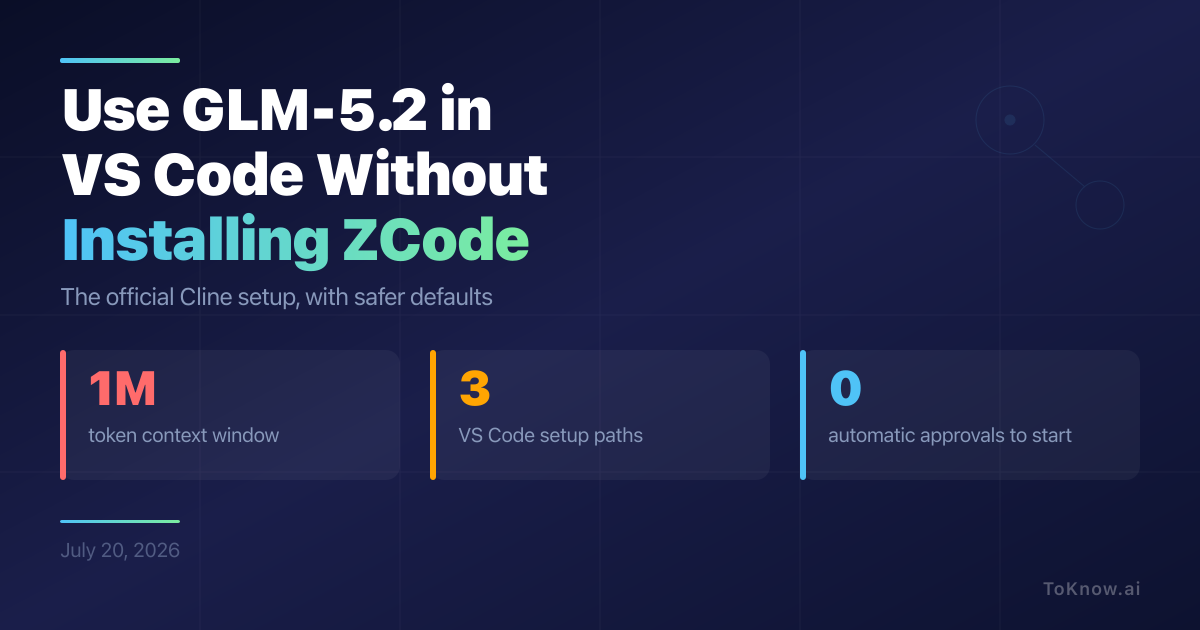
You do not need ZCode to use GLM-5.2 in VS Code. ZCode is Z.ai’s separate desktop agent (release history). You have three routes: Cline, native Copilot BYOK, or a community Copilot provider.
1. Create the key
Create an ordinary Z.ai API key for Copilot, or the correct personal or team Coding Plan key for Cline (quick start). Keep it out of tracked files and screenshots.
2. Configure Cline
Install Cline. Choose Use your own API Key, then enter:
- API provider: OpenAI Compatible
- Base URL:
https://api.z.ai/api/coding/paas/v4 - API key: your Z.ai Coding Plan key
- Model:
glm-5.2 - Context window:
1000000 - Support Images: off
These values match Z.ai’s tool guide. GLM-5.2 accepts text and has a one-million-token context (model guide).
3. Configure GitHub Copilot
Current VS Code releases support bring-your-own-key models in chat (VS Code model guide). Run Chat: Manage Language Models, select Add Models, then Custom Endpoint. Choose Chat Completions and use an ordinary Z.ai API key, not a Coding Plan key. In the generated chatLanguageModels.json, configure:
{
  "id": "glm-5.2",
  "name": "GLM-5.2",
  "url": "https://api.z.ai/api/paas/v4/chat/completions",
  "toolCalling": true,
  "vision": false,
  "maxInputTokens": 872000,
  "maxOutputTokens": 128000
}
Select GLM-5.2 from Copilot Chat’s model picker. This works for chat and agents, not Copilot’s inline code completions. Z.ai does not list Copilot as a supported Coding Plan tool, so plan quota may be restricted.
4. Use the community Copilot provider
Install GLM for VsCode Copilot, verifying publisher ikaros. Version 0.8.0 requires VS Code 1.116 or newer and a Copilot account. Run GLM: Manage Models and Connections, choose your region and Coding Plan or Standard API channel, save its key, then select GLM-5.2 from Copilot Chat.
The extension stores keys in VS Code SecretStorage and supports tools, reasoning controls, and a vision proxy. It is community maintained and uses non-public Copilot APIs, so a VS Code update can break it. Check the source and releases before updating.
5. Keep the agent on a short leash
Cline and Copilot agents can edit files and run commands. Keep automatic approvals off and open unfamiliar repositories with VS Code Workspace Trust in Restricted Mode.
Prompts and selected code go to Z.ai. Review its privacy policy before sending private code.
6. Conclusion
- Use Cline, native Copilot BYOK, or the community Copilot provider.
- Set the context correctly and disable image support.
- Approve edits and commands manually until you trust the workflow.
References
- Z.ai (2026). Cline integration guide.
- Z.ai (2026). GLM Coding Plan quick start.
- Z.ai (2026). Tool integration and coding endpoints.
- Z.ai (2026). GLM-5.2 model guide.
- Z.ai (2026). GLM Coding Plan usage policy.
- Z.ai (2026). Privacy policy.
- Microsoft (2026). Workspace Trust.
- Cline (2026). Auto Approve and YOLO Mode.
- Microsoft (2026). Cline on the Visual Studio Marketplace.
- ZCode (2026). Releases and updates.
- Microsoft (2026). AI language models in VS Code.
- ikaros (2026). GLM for VsCode Copilot.
- umbrella22 (2026). GLM for Copilot v0.8.0 source release.
Disclaimer: For information only. Accuracy or completeness not guaranteed. Illegal use prohibited. Not professional advice or solicitation. Read more: /terms-of-service
Reuse
Citation
@misc{kabui2026,
  author = {{Kabui, Charles}},
  title = {Use {GLM-5.2} in {VS} {Code} {Without} {Installing} {ZCode}},
  date = {2026-07-20},
  url = {https://toknow.ai/posts/using-glm-5-2-vscode-cline-setup/},
  langid = {en-GB}
}